


Ever written a message that sounds a little awkward? Or had a rough idea that you wanted to turn into a clear, detailed prompt?
You can now do that without rewriting everything yourself.
Introducing Shortcuts in GoEchoo — a simple way to improve, rewrite, and transform text using AI. Whether you're writing an email, preparing a message, or creating a prompt for an AI tool, Shortcuts helps you get the words right with just a few clicks.
What Are GoEchoo Shortcuts?
GoEchoo Shortcuts lets you select text in almost any app and change it using a built-in or custom shortcut.
You can clean up your writing, make it shorter, explain something in simpler words, or turn a rough idea into a detailed prompt.
Instead of copying text into another AI tool and explaining what you want, you can apply a shortcut directly to your selected text.
What Can You Do with Shortcuts?
1. Clean Up Your Text
Have a message with grammar mistakes, repeated words, or unclear sentences?
Use the Clean up shortcut to make your writing clearer and easier to read while keeping your original meaning.
2. Turn Rough Ideas into Detailed Prompts
Sometimes, you know what you want to ask an AI tool, but you don't know how to write the perfect prompt.
The Prompt builder shortcut helps turn rough notes into a clearer, more structured prompt that you can use with ChatGPT, Claude, or other AI tools.
3. Create Your Own Shortcuts
Everyone has a different writing style and different needs. That's why GoEchoo lets you create your own shortcuts.
Give your shortcut a name, add a short description, and write instructions explaining how you want your text to change.
For example, you could create shortcuts to:
Turn casual messages into professional emails.
Convert Hinglish text into English.
Summarize long text into bullet points.
Make messages shorter without losing important details.
Rewrite text in a friendly, formal, or confident tone.
Once created, your custom shortcut is available whenever you need it.
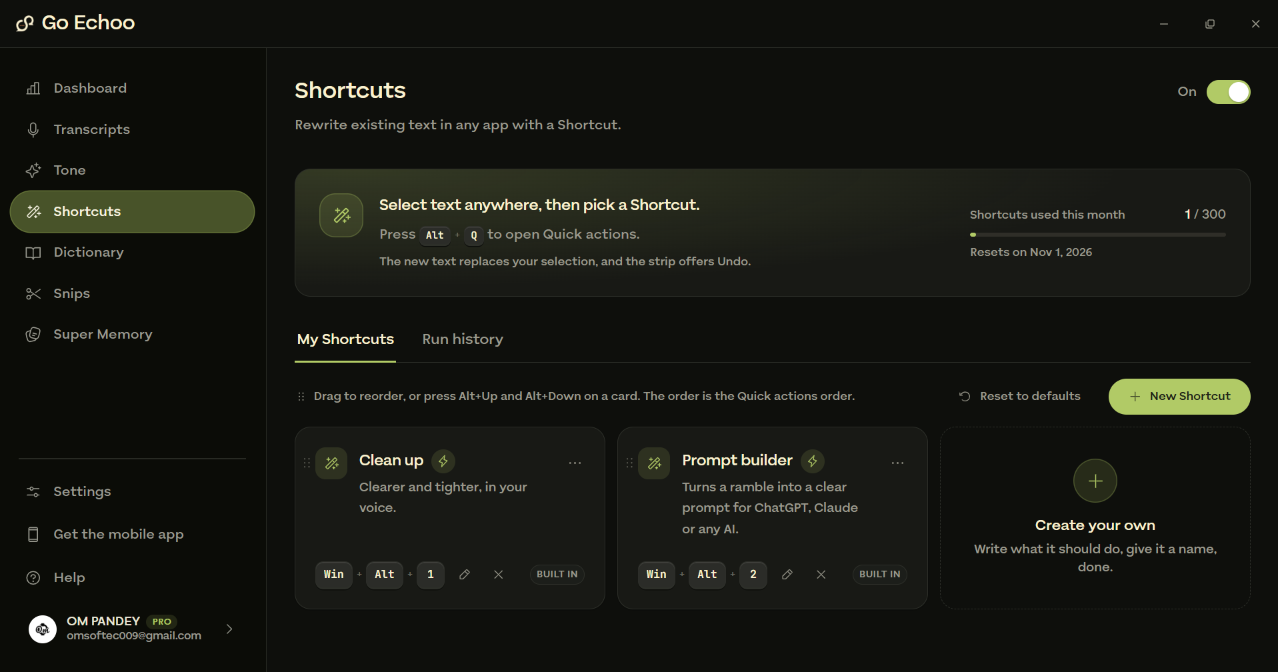
Explore built-in shortcuts, manage your shortcuts, and create your own.
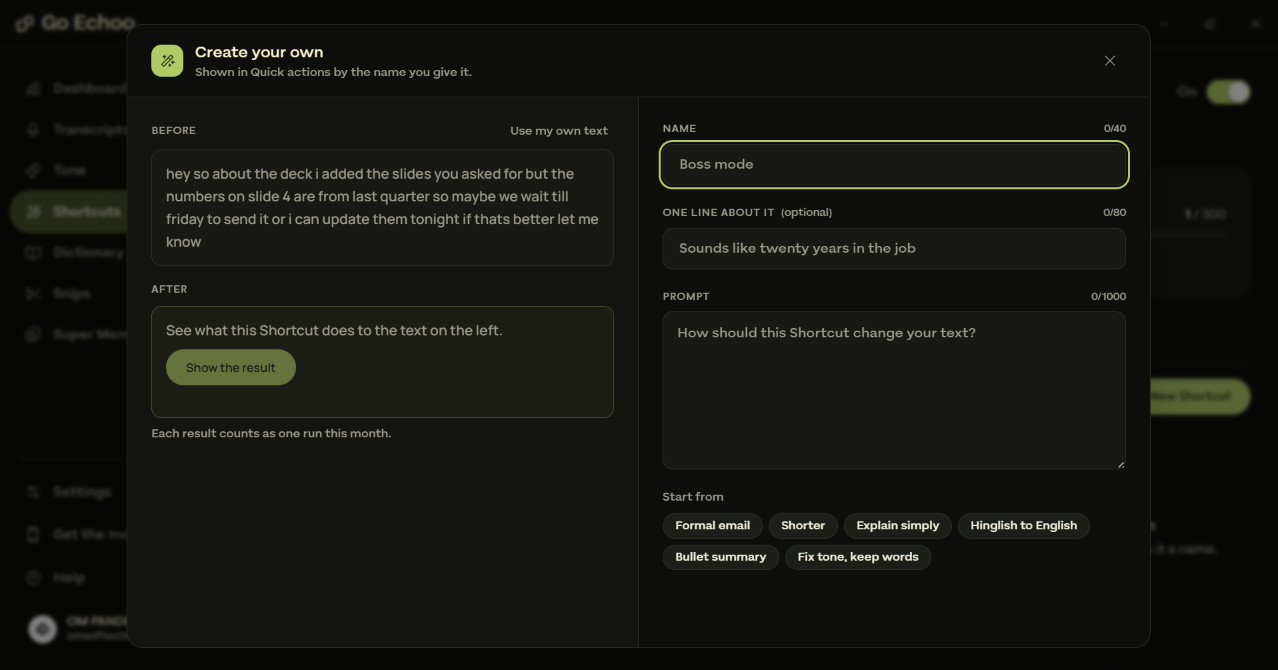
Customize your shortcut with a name, description, and your own instructions.
Two Ways to Use GoEchoo Shortcuts
GoEchoo makes it easy to access Shortcuts in two ways.
Method 1: Use Your Custom Shortcut
If you frequently perform the same writing task, creating a custom shortcut can save you time.
Open GoEchoo and navigate to Shortcuts.
Click New Shortcut.
Enter a name and an optional description.
Write instructions explaining how the selected text should change.
Save your shortcut.
The next time you need it, select your text and choose your custom shortcut from Quick Actions.
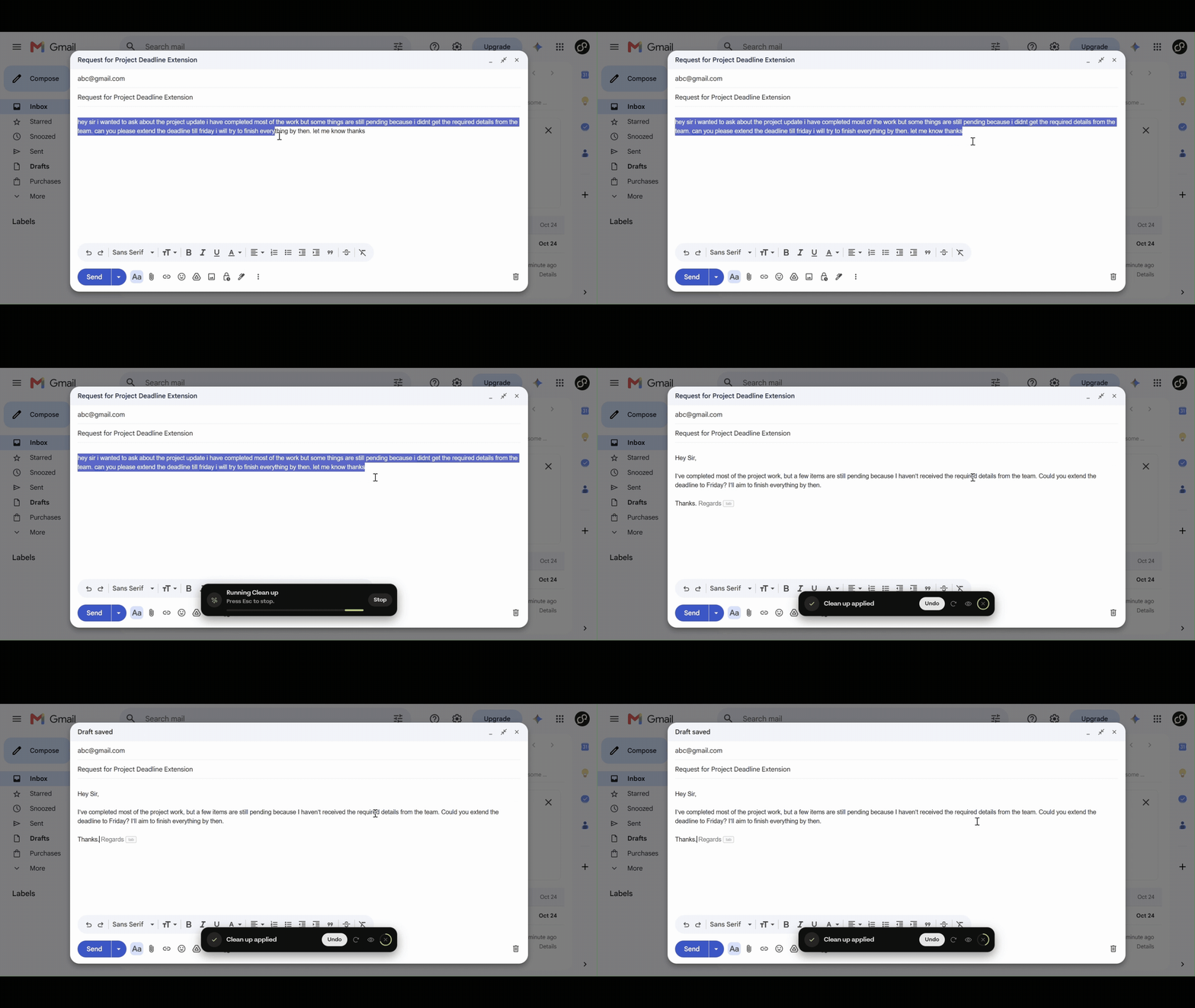
Create a shortcut once and reuse it whenever you need it.
Method 2: Use Alt + Q for Quick Actions
Need to rewrite something quickly? You don't have to open the GoEchoo dashboard every time.
Select the text you want to change in any app.
Press Alt + Q to open Quick Actions.
Choose the shortcut you want to use.
Let GoEchoo transform your selected text.
Your updated text replaces the original selection, and the GoEchoo strip provides an Undo option if you want to reverse the change.
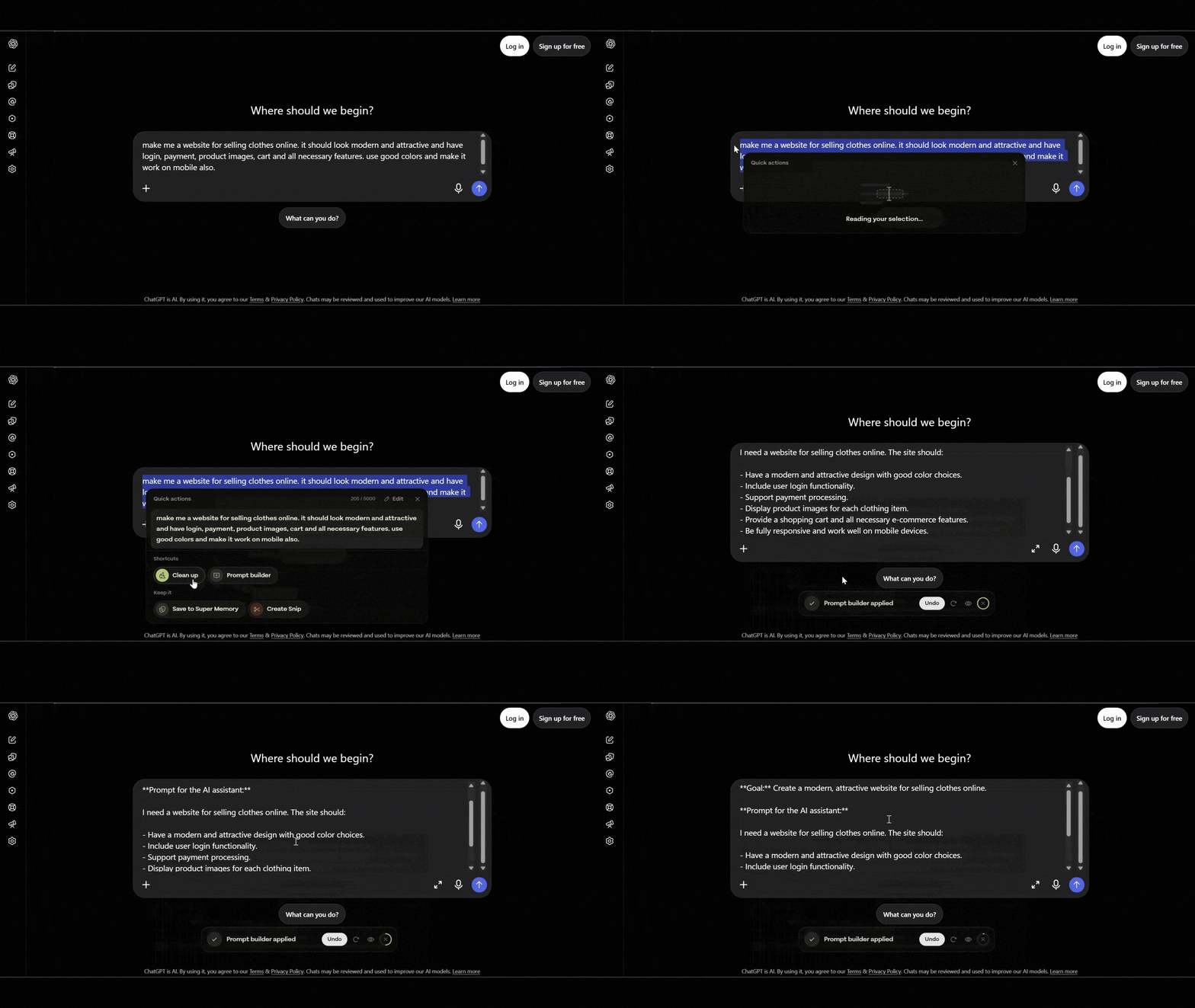
Select, choose, and transform your text without interrupting your workflow.
Make Shortcuts Work Your Way
Your shortcuts don't have to stay in the same order. You can drag and drop them to organize your favorites, edit your custom shortcuts, and keep the actions you use most often within easy reach.
GoEchoo also includes a run history so you can review your previous shortcut activity.
Spend Less Time Rewriting
Writing doesn't always have to start from scratch. Sometimes, a few simple changes can make a message clearer, a prompt more useful, or an email more professional.
With GoEchoo Shortcuts, you can make those changes in seconds, create instructions that fit your workflow, and get back to what matters.
Ready to give it a try? Open GoEchoo, explore Shortcuts, and create one that makes your everyday writing easier.
Happy writing with GoEchoo!